通过 HTTP 启动 SCCM
System Center Configuration Manager (SCCM)(以前称为 Systems Management Server,SMS)是 Microsoft 用于部署和管理大量 Windows 计算机的产品。如果你使用 iPXE,那么你可以使用 HTTP 启动 SCCM 客户端,这比默认的 TFTP 协议更快、更可靠。在千兆以太网网络上,一个典型的 200MB SCCM 镜像应该在两秒内下载完成。
准备
创建启动文件
sccm.iso

在 Configuration Manager 控制台中,打开 站点数据库 -> 计算机管理 -> 操作系统部署。右键单击 任务序列 并选择 创建任务序列介质。
在"创建任务序列介质向导"中,选择 可启动介质 和 CD/DVD 集,并把介质文件保存为 sccm.iso。
把 ISO 镜像 sccm.iso 中的所有文件解压到一个目录 sccmfiles。
wimboot
下载最新版本的 wimboot.zip,并解压文件 wimboot。
bootstrap.vbs
创建一个文本文件 bootstrap.vbs,内容如下:
  Set os = WScript.CreateObject ( "WScript.Shell" )
  os.Run "%COMSPEC%", 7, false
  os.Run "%COMSPEC% /c title Initialising... && wpeinit " & _
         "&& net start dnscache", 1, true
  os.RegWrite "HKLM\SYSTEM\CurrentControlSet\Control\PEBootType", _
              "Ramdisk:OpticalDrive", "REG_SZ"
  os.Run WScript.ScriptFullName & "\..\TsmBootStrap.exe /env:WinPE " & _
         "/configpath:%SYSTEMDRIVE%\sms\data", 1, true
winpeshl.ini
创建一个文本文件 winpeshl.ini,内容如下:
  [LaunchApps]
  "wscript.exe","%SYSTEMDRIVE%\sms\bin\x64\bootstrap.vbs"
如果你使用的是 32 位客户端计算机,那么你需要把 "x64" 改为 "x86"。
sccm.ipxe
创建一个文本文件 sccm.ipxe,内容如下:

  #!ipxe

  kernel wimboot
  initrd bcd      BCD
  initrd boot.wim boot.wim
  boot
修改启动镜像
修改启动镜像(使用 Windows)
你可以使用 ImageX 工具(作为 Windows 自动安装工具包(WAIK)的一部分提供)挂载启动镜像并修改文件:
  mkdir mntpnt
  imagex /mountrw sccmfiles\sources\boot.wim 1 mntpnt
  xcopy /e /f /y sccmfiles\sms mntpnt\sms
  copy /y winpeshl.ini mntpnt\Windows\System32\
  copy /y bootstrap.vbs mntpnt\sms\bin\x64\
  imagex /unmount /commit mntpnt
修改启动镜像(使用 Linux)
你可以使用 imagex 工具(作为 wimlib 的一部分提供)挂载启动镜像并修改文件:
  mkdir mntpnt
  imagex mountrw sccmfiles/sources/boot.wim 1 mntpnt
  cp -drn sccmfiles/sms/* mntpnt/sms/
  rm -f mntpnt/Windows/System32/winpeshl.ini
  cp winpeshl.ini mntpnt/Windows/System32/
  cp bootstrap.vbs mntpnt/sms/bin/x64/
  imagex unmount mntpnt --commit
发布启动文件
把这些文件:
sccm.ipxewimbootsccmfiles/boot/bcdsccmfiles/sources/boot.wim
复制到你 Web 服务器上的单个目录中。
启动
你现在应该能够配置 iPXE 从你 Web 服务器上的 sccm.ipxe 文件启动。例如,如果你使用 ISC dhcpd,那么你可以编辑 /etc/dhcpd.conf,使其包含:
filename "http://my.web.server/sccm.ipxe";
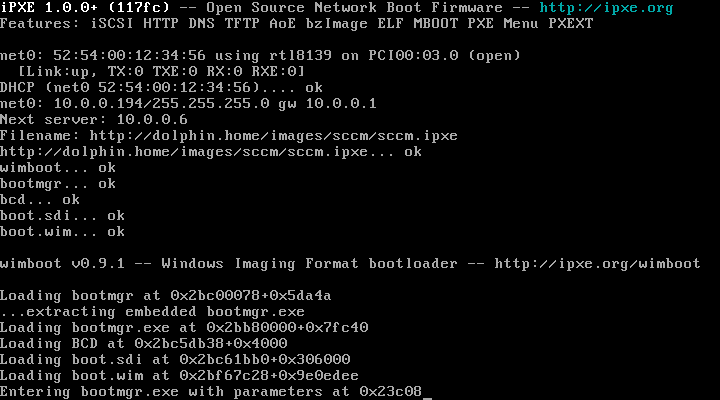
你应该会看到 iPXE 下载并启动你的 SCCM 文件:
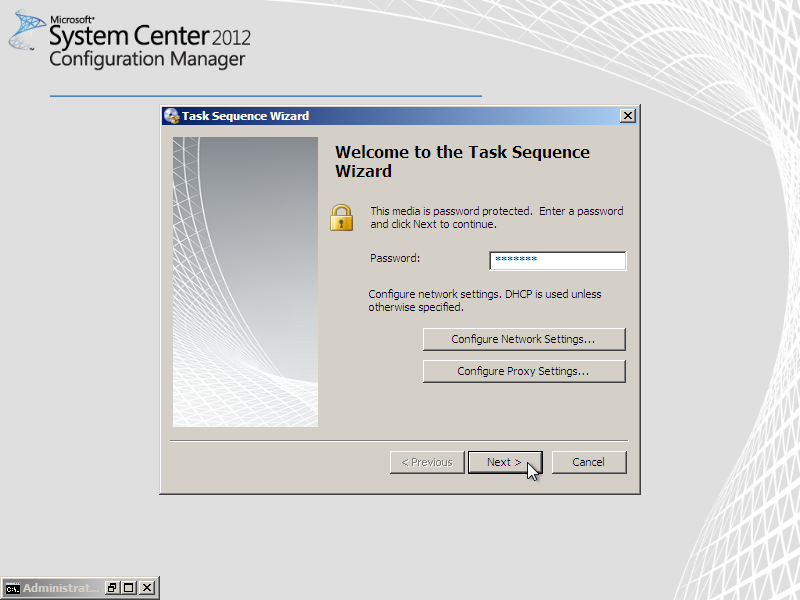
几秒钟后,你应该会看到熟悉的 SCCM "Welcome to the Task Sequence Wizard" 屏幕:
恭喜你成功通过 HTTP 启动 SCCM!